
INFO
The desktop app is brand new and currently in beta.
While the underlying software is the same, you may experience more bugs/issues than you would in the web app due to peculiarities between different operating systems and their native browsers.
Please make sure to make frequent backups of your Molequles data via Settings > Export User Data.
The most recommended way to use Molequles is directly through a web browser at https://molequles.app. This way is the most stable and ensures you get the latest updates automatically.
However, a desktop app is available if:
- You prefer a desktop app experience.
- You would like to use Molequles without signing up for an account.
- You prefer to keep your data on your computer and not online.
The desktop app is essentially the same application as the one running in the web browser, but provided as a standalone app, with the added option of using Molequles completely offline without an account.
Download (Beta)
Online/Offline modes
Upon starting the Molequles desktop app, you'll be presented with a choice to use either Online or Offline mode.
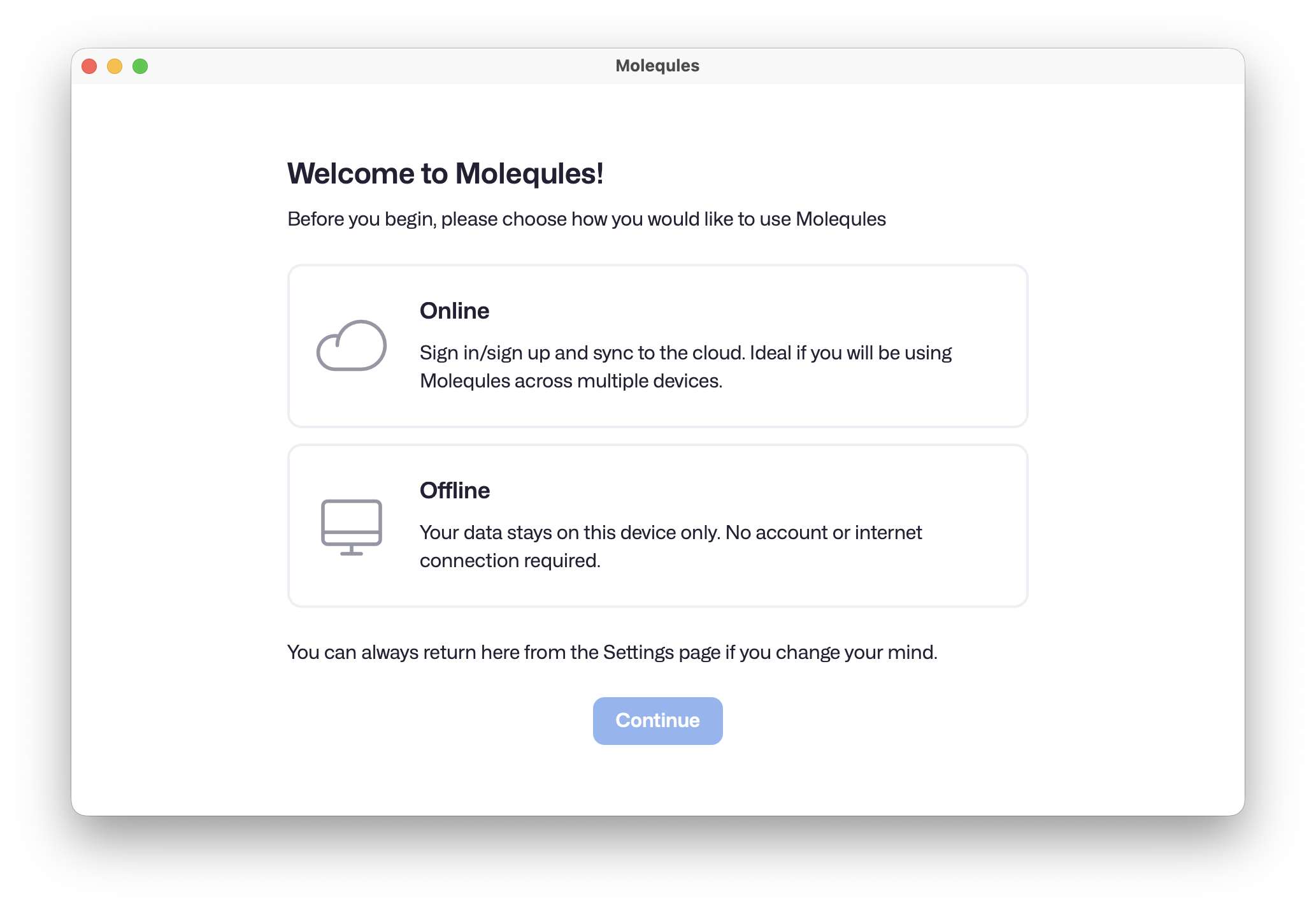
Online Mode
In Online mode, Molequles works much the same as it does in your web browser:
- You'll need to sign in with an account.
- Data is synced to the cloud and between devices.
Offline Mode
In Offline mode, Molequles works exclusively within the confines of your device, meaning:
- No account or internet connection is required.
- Data is saved directly and only to your device.
You can always switch modes in the desktop app at any time in the Settings page or from the app menu bar.
Read more about Online and Offline modes in the Privacy Policy
Migrating to Offline Mode
If you have previously used Molequles with an account and would like to move to an "Offline only" workflow, you can follow these steps:
- Export user data: Sign in to Molequles, go to Settings and click Export User Data at the bottom of the screen. This will generate a zip file to download with all your user data.
- Open desktop app: Download/open the Molequles Desktop App
- Select the Offline mode (or go to
Settings > Switch Mode, or from the app menuFile > Switch Online/Offline mode) - Import user data: Once you are in offline mode, go to Settings and click Import User Data
- Load the user data zip file that you previously downloaded
- Click "Import" and allow the process to complete.
You should now have a replica of your data in your desktop app in Offline Mode. Any changes you make in your online account will not be reflected in Offline Mode (unless you export + import again).
If you'd like to continue working across multiple devices while using Offline Mode, you can utilize the Import/Export User Data feature to manually copy data between devices.
Deleting Your Account
WARNING
Only proceed with deleting your account if you are absolutely sure you do not want to continue using Molequles online.
If you'd like to delete your online account so that your user data is no longer stored in the Molequles server, follow these steps:
- Sign in to the web app
- Go to Settings
- Click Delete Account. This will open a dialog explaining that this is an irreversible action.
- Enter your user email for verification and press Confirm
Your account record and all of its associated data will be permanently deleted from the Molequles server and services.